> ## Documentation Index
> Fetch the complete documentation index at: https://docs-staging-chore-teams-api-autoupdate.mintlify.site/llms.txt
> Use this file to discover all available pages before exploring further.

> Configure an update policy form using Forms for Actions

# Use Cases: Configure an update policy form using Forms

<Card title="Before you start">
  1. Create a [Machine-to-Machine Application](/docs/get-started/auth0-overview/create-applications/machine-to-machine-apps) with the following scopes enabled:

  * `read:users`
  * `update:users`
  * `create:users`
  * `read:users_app_metadata`
  * `update:users_app_metadata`
  * `create:users_app_metadata`

  2. Add a [Vault connection](/docs/customize/forms/vault) using the M2M application credentials.
</Card>

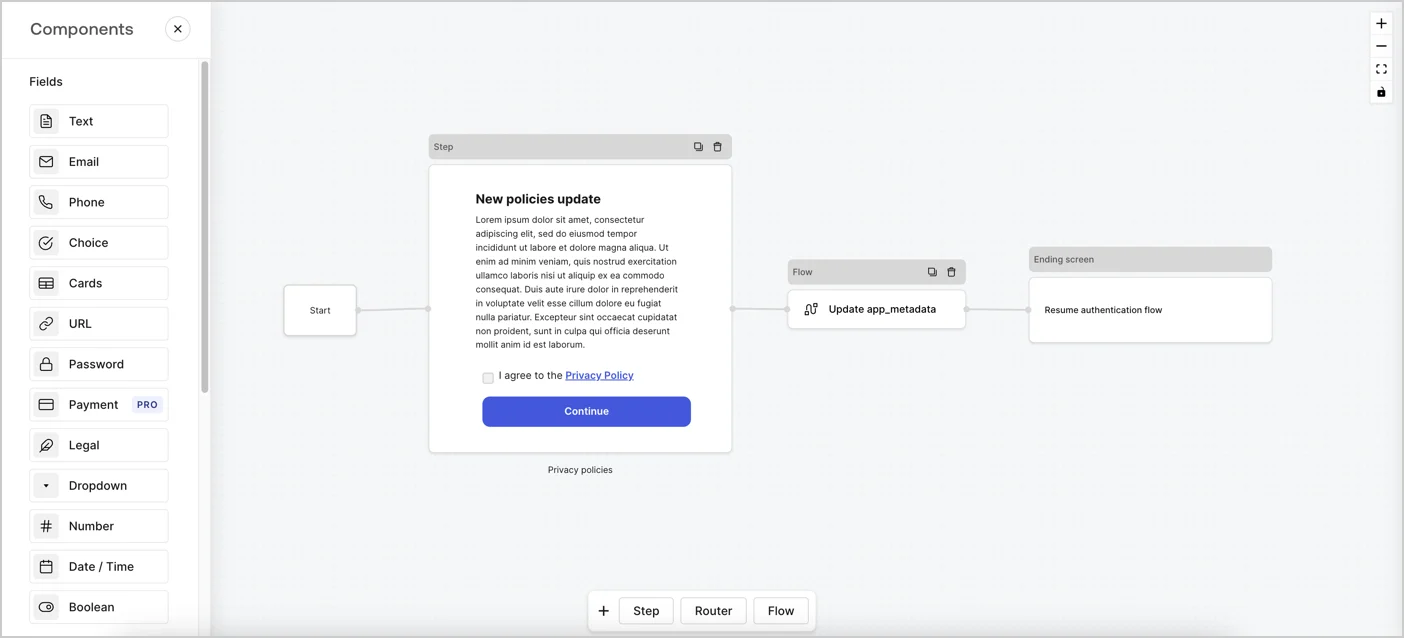
Forms for Actions allows you to create custom privacy policies flows and store the consent under the `app_metadata` object.
<Frame>
  <img src="https://mintcdn.com/docs-staging-chore-teams-api-autoupdate/0XDS4fwI8SLm1LYh/docs/images/cdy7uua7fh8z/6i68dMvHDTijfRmSgN1x8Q/ad900e7d4c0fb34645921435472b8684/privavy-policy-form.png?fit=max&auto=format&n=0XDS4fwI8SLm1LYh&q=85&s=1d18ab0e9254add41083daa64dc39e58" alt="Dashboard > Actions > Forms > Privacy policy use case" data-og-width="1404" width="1404" data-og-height="638" height="638" data-path="docs/images/cdy7uua7fh8z/6i68dMvHDTijfRmSgN1x8Q/ad900e7d4c0fb34645921435472b8684/privavy-policy-form.png" data-optimize="true" data-opv="3" srcset="https://mintcdn.com/docs-staging-chore-teams-api-autoupdate/0XDS4fwI8SLm1LYh/docs/images/cdy7uua7fh8z/6i68dMvHDTijfRmSgN1x8Q/ad900e7d4c0fb34645921435472b8684/privavy-policy-form.png?w=280&fit=max&auto=format&n=0XDS4fwI8SLm1LYh&q=85&s=156b178b4a9ab52640a928f72594f598 280w, https://mintcdn.com/docs-staging-chore-teams-api-autoupdate/0XDS4fwI8SLm1LYh/docs/images/cdy7uua7fh8z/6i68dMvHDTijfRmSgN1x8Q/ad900e7d4c0fb34645921435472b8684/privavy-policy-form.png?w=560&fit=max&auto=format&n=0XDS4fwI8SLm1LYh&q=85&s=69ab4196d9cb6eb6f4c2089e506794bc 560w, https://mintcdn.com/docs-staging-chore-teams-api-autoupdate/0XDS4fwI8SLm1LYh/docs/images/cdy7uua7fh8z/6i68dMvHDTijfRmSgN1x8Q/ad900e7d4c0fb34645921435472b8684/privavy-policy-form.png?w=840&fit=max&auto=format&n=0XDS4fwI8SLm1LYh&q=85&s=7bdaf6baa0b672b133d1b9729a6da160 840w, https://mintcdn.com/docs-staging-chore-teams-api-autoupdate/0XDS4fwI8SLm1LYh/docs/images/cdy7uua7fh8z/6i68dMvHDTijfRmSgN1x8Q/ad900e7d4c0fb34645921435472b8684/privavy-policy-form.png?w=1100&fit=max&auto=format&n=0XDS4fwI8SLm1LYh&q=85&s=76d9dfe8156f13af2a7250c22ce41090 1100w, https://mintcdn.com/docs-staging-chore-teams-api-autoupdate/0XDS4fwI8SLm1LYh/docs/images/cdy7uua7fh8z/6i68dMvHDTijfRmSgN1x8Q/ad900e7d4c0fb34645921435472b8684/privavy-policy-form.png?w=1650&fit=max&auto=format&n=0XDS4fwI8SLm1LYh&q=85&s=3aed6e7a23cc756e5be2b78b3baba11a 1650w, https://mintcdn.com/docs-staging-chore-teams-api-autoupdate/0XDS4fwI8SLm1LYh/docs/images/cdy7uua7fh8z/6i68dMvHDTijfRmSgN1x8Q/ad900e7d4c0fb34645921435472b8684/privavy-policy-form.png?w=2500&fit=max&auto=format&n=0XDS4fwI8SLm1LYh&q=85&s=79bc3d79301958ebdcab610d405ebde4 2500w" />
</Frame>

The sections below outline how you can create an Update Policy form using nodes and flows, along with steps for adding your form to a [Post Login](/docs/customize/actions/explore-triggers/signup-and-login-triggers/login-trigger) Action.

## Create a form from scratch

Follow these steps to create a form to gather information:

1. Open the Form editor by selecting **Auth0 Dashboard > Actions > Forms.**
2. Select **Create Form** > **Start from scratch**.

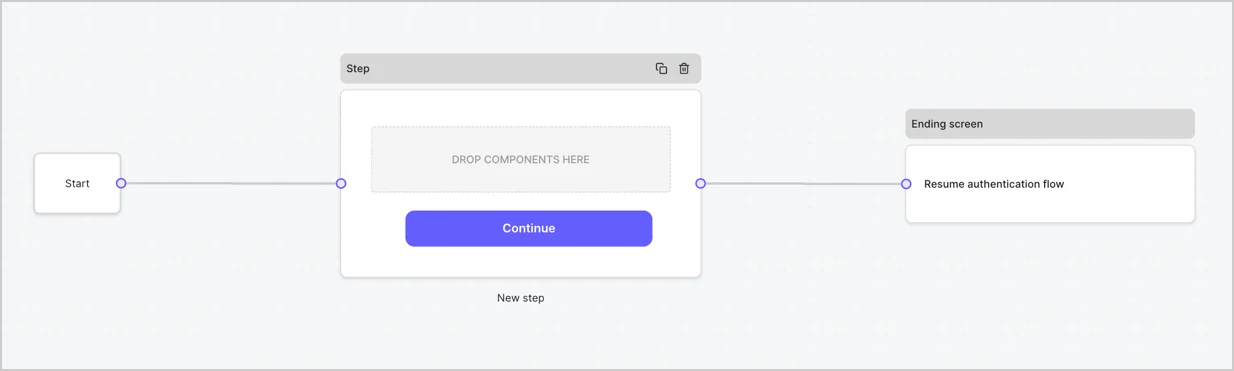
By default, a new form contains a Start node, a Step node, and an Ending screen node.
<Frame>
  <img src="https://mintcdn.com/docs-staging-chore-teams-api-autoupdate/zXV_Kddv_PqIkgnl/docs/images/cdy7uua7fh8z/2TZ9jSjgEcARFpULI6hz4R/a4319a1bd482f2ee5cc23100fdb2f42c/New-form-Forms-for-action-use-case.png?fit=max&auto=format&n=zXV_Kddv_PqIkgnl&q=85&s=c92611324dba3247da35c971b6650a7d" alt="Dashboard > Forms > Use Cases > Form" data-og-width="1234" width="1234" data-og-height="371" height="371" data-path="docs/images/cdy7uua7fh8z/2TZ9jSjgEcARFpULI6hz4R/a4319a1bd482f2ee5cc23100fdb2f42c/New-form-Forms-for-action-use-case.png" data-optimize="true" data-opv="3" srcset="https://mintcdn.com/docs-staging-chore-teams-api-autoupdate/zXV_Kddv_PqIkgnl/docs/images/cdy7uua7fh8z/2TZ9jSjgEcARFpULI6hz4R/a4319a1bd482f2ee5cc23100fdb2f42c/New-form-Forms-for-action-use-case.png?w=280&fit=max&auto=format&n=zXV_Kddv_PqIkgnl&q=85&s=66c7f910d58f1007802751186c7949d5 280w, https://mintcdn.com/docs-staging-chore-teams-api-autoupdate/zXV_Kddv_PqIkgnl/docs/images/cdy7uua7fh8z/2TZ9jSjgEcARFpULI6hz4R/a4319a1bd482f2ee5cc23100fdb2f42c/New-form-Forms-for-action-use-case.png?w=560&fit=max&auto=format&n=zXV_Kddv_PqIkgnl&q=85&s=c9f00ef0201b392f09a7141d5d710dea 560w, https://mintcdn.com/docs-staging-chore-teams-api-autoupdate/zXV_Kddv_PqIkgnl/docs/images/cdy7uua7fh8z/2TZ9jSjgEcARFpULI6hz4R/a4319a1bd482f2ee5cc23100fdb2f42c/New-form-Forms-for-action-use-case.png?w=840&fit=max&auto=format&n=zXV_Kddv_PqIkgnl&q=85&s=54a6b8af76632bd4f5d14f15d5e55e96 840w, https://mintcdn.com/docs-staging-chore-teams-api-autoupdate/zXV_Kddv_PqIkgnl/docs/images/cdy7uua7fh8z/2TZ9jSjgEcARFpULI6hz4R/a4319a1bd482f2ee5cc23100fdb2f42c/New-form-Forms-for-action-use-case.png?w=1100&fit=max&auto=format&n=zXV_Kddv_PqIkgnl&q=85&s=8423db26bfa1a996c732dc73da8c7352 1100w, https://mintcdn.com/docs-staging-chore-teams-api-autoupdate/zXV_Kddv_PqIkgnl/docs/images/cdy7uua7fh8z/2TZ9jSjgEcARFpULI6hz4R/a4319a1bd482f2ee5cc23100fdb2f42c/New-form-Forms-for-action-use-case.png?w=1650&fit=max&auto=format&n=zXV_Kddv_PqIkgnl&q=85&s=3362cd0449041b6128fa1b1596f0b4c7 1650w, https://mintcdn.com/docs-staging-chore-teams-api-autoupdate/zXV_Kddv_PqIkgnl/docs/images/cdy7uua7fh8z/2TZ9jSjgEcARFpULI6hz4R/a4319a1bd482f2ee5cc23100fdb2f42c/New-form-Forms-for-action-use-case.png?w=2500&fit=max&auto=format&n=zXV_Kddv_PqIkgnl&q=85&s=00a7c7cc7df3f7a7aefb051d2367a02d 2500w" />
</Frame>

### Configure the Step node

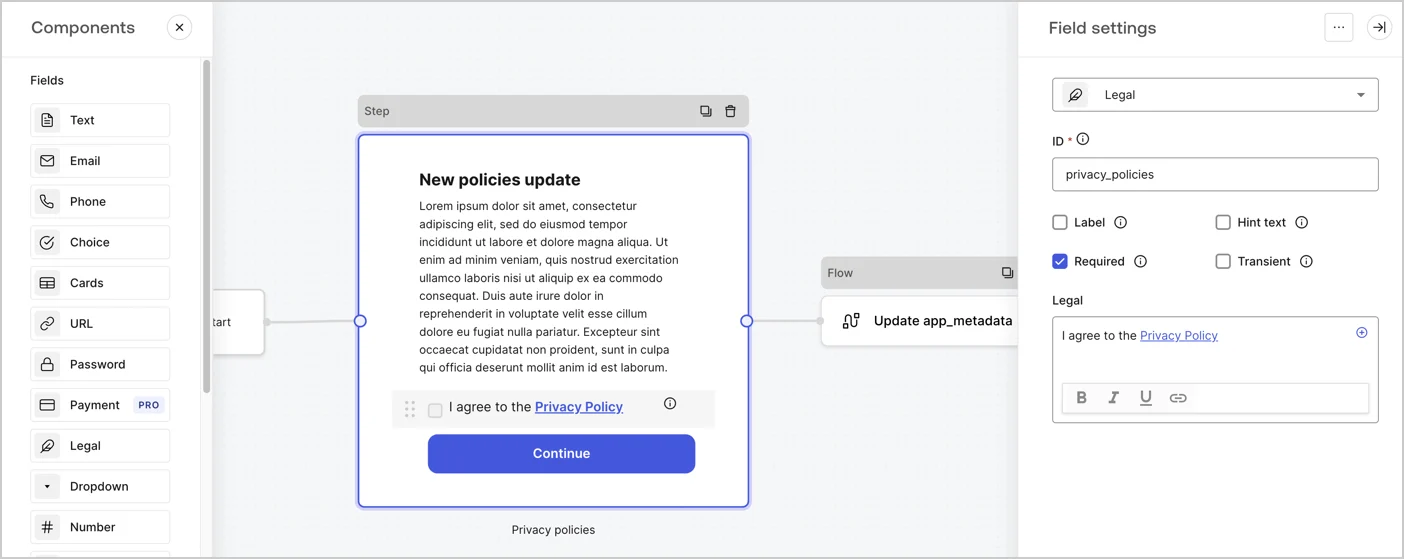
The Step node is the graphical interface visible to users. Add [Fields](/docs/customize/forms/nodes-and-components) to the Step node to collect the new agreement acceptance value by following these steps:

1. Drag a **Rich text** field from the **Components menu** into the **Step** node.

   * **Rich text**: Enter a description of your privacy policies updates.
   * Select **Save**.
2. Drag a **Legal** field into the **Step** node.

   * **ID**: Enter `privacy_policies`.
   * **Required**: Enable the checkbox.
   * **Legal**: Enter `I agree to the Privacy Policy`.
   * Select **Save**.
3. Select **Publish** to save.
<Frame>
  <img src="https://mintcdn.com/docs-staging-chore-teams-api-autoupdate/0ynazMpWe_jt_ofQ/docs/images/cdy7uua7fh8z/59zFFjQjAnjogkc2QGIqqJ/0ad66b1b636544122aa4e65968b76c2c/privacy-policy-step-node.png?fit=max&auto=format&n=0ynazMpWe_jt_ofQ&q=85&s=0f4b9fb5d2f10b698346be723d408c36" alt="Dashboard > Actions > Forms > Use case privacy policy step node" data-og-width="1404" width="1404" data-og-height="559" height="559" data-path="docs/images/cdy7uua7fh8z/59zFFjQjAnjogkc2QGIqqJ/0ad66b1b636544122aa4e65968b76c2c/privacy-policy-step-node.png" data-optimize="true" data-opv="3" srcset="https://mintcdn.com/docs-staging-chore-teams-api-autoupdate/0ynazMpWe_jt_ofQ/docs/images/cdy7uua7fh8z/59zFFjQjAnjogkc2QGIqqJ/0ad66b1b636544122aa4e65968b76c2c/privacy-policy-step-node.png?w=280&fit=max&auto=format&n=0ynazMpWe_jt_ofQ&q=85&s=f301f4c28fbe400343a6b42393bf4580 280w, https://mintcdn.com/docs-staging-chore-teams-api-autoupdate/0ynazMpWe_jt_ofQ/docs/images/cdy7uua7fh8z/59zFFjQjAnjogkc2QGIqqJ/0ad66b1b636544122aa4e65968b76c2c/privacy-policy-step-node.png?w=560&fit=max&auto=format&n=0ynazMpWe_jt_ofQ&q=85&s=a76c0ae52fe1a086d99a2f7fa304499d 560w, https://mintcdn.com/docs-staging-chore-teams-api-autoupdate/0ynazMpWe_jt_ofQ/docs/images/cdy7uua7fh8z/59zFFjQjAnjogkc2QGIqqJ/0ad66b1b636544122aa4e65968b76c2c/privacy-policy-step-node.png?w=840&fit=max&auto=format&n=0ynazMpWe_jt_ofQ&q=85&s=ed0ec0d2543966d77c6be90f346be892 840w, https://mintcdn.com/docs-staging-chore-teams-api-autoupdate/0ynazMpWe_jt_ofQ/docs/images/cdy7uua7fh8z/59zFFjQjAnjogkc2QGIqqJ/0ad66b1b636544122aa4e65968b76c2c/privacy-policy-step-node.png?w=1100&fit=max&auto=format&n=0ynazMpWe_jt_ofQ&q=85&s=8872c89015cb1cf471537abd7cb434da 1100w, https://mintcdn.com/docs-staging-chore-teams-api-autoupdate/0ynazMpWe_jt_ofQ/docs/images/cdy7uua7fh8z/59zFFjQjAnjogkc2QGIqqJ/0ad66b1b636544122aa4e65968b76c2c/privacy-policy-step-node.png?w=1650&fit=max&auto=format&n=0ynazMpWe_jt_ofQ&q=85&s=bc117390dcb48ea2dc9b37b14108fe5f 1650w, https://mintcdn.com/docs-staging-chore-teams-api-autoupdate/0ynazMpWe_jt_ofQ/docs/images/cdy7uua7fh8z/59zFFjQjAnjogkc2QGIqqJ/0ad66b1b636544122aa4e65968b76c2c/privacy-policy-step-node.png?w=2500&fit=max&auto=format&n=0ynazMpWe_jt_ofQ&q=85&s=a32708b9ad557774863ebbea07d2eba8 2500w" />
</Frame>

### Configure the Flow node

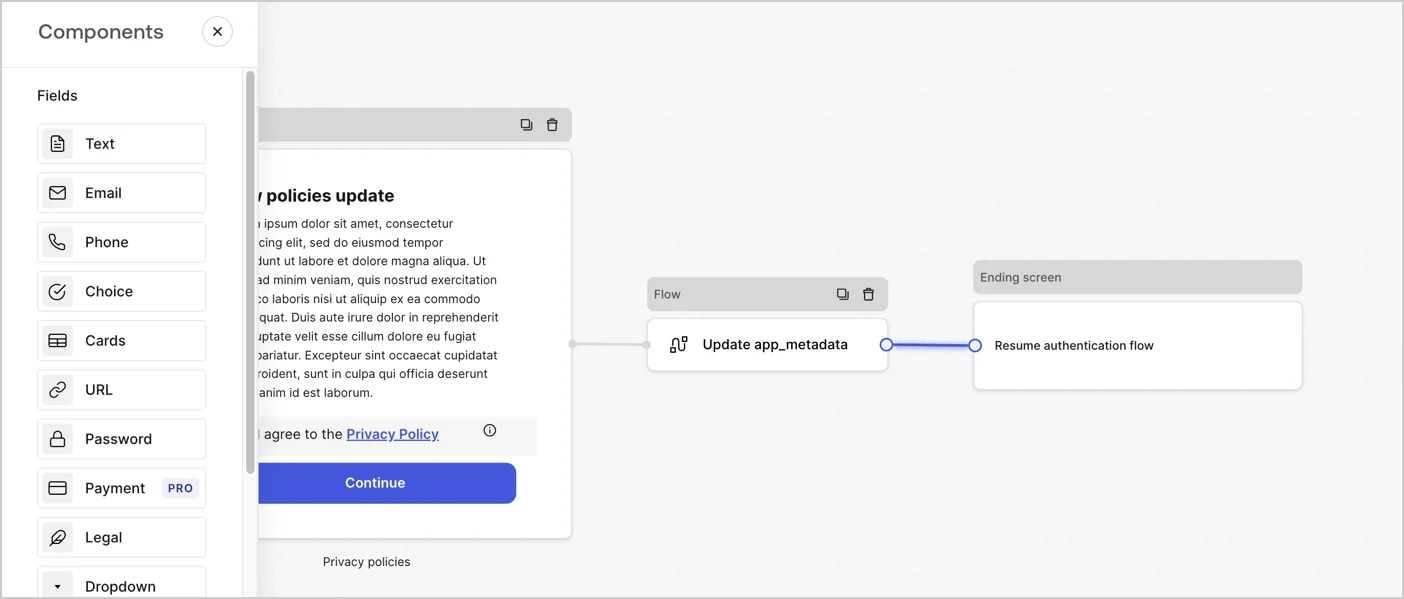
Add a **Flow** node after the **Step** node to update the `app_metadata` and resume the authentication flow by following these steps:

1. Select **Flow** from the bottom of the Form editor.
2. Remove the existing link between the **Step** and **Ending Screen** nodes.
3. Select the new **Flow** > **Click to add a flow** > **Create a new flow.**

   * Enter `Update app_metadata` in the **Name** field.
   * Select **Create**.
   * Select **Save**.
4. Link the **Flow** node to the **Step** and **Ending Screen** nodes as pictured below.
5. Select **Publish** to save.
<Frame>
  <img src="https://mintcdn.com/docs-staging-chore-teams-api-autoupdate/0XDS4fwI8SLm1LYh/docs/images/cdy7uua7fh8z/6YIkzm7SrpM9LW76AXuRzh/353c518fe82bbaa440836da1d83596d6/link-policies.png?fit=max&auto=format&n=0XDS4fwI8SLm1LYh&q=85&s=654549e56162a819d46ec907527c6201" alt="Dashboard > Actions > Forms > Form" data-og-width="1404" width="1404" data-og-height="599" height="599" data-path="docs/images/cdy7uua7fh8z/6YIkzm7SrpM9LW76AXuRzh/353c518fe82bbaa440836da1d83596d6/link-policies.png" data-optimize="true" data-opv="3" srcset="https://mintcdn.com/docs-staging-chore-teams-api-autoupdate/0XDS4fwI8SLm1LYh/docs/images/cdy7uua7fh8z/6YIkzm7SrpM9LW76AXuRzh/353c518fe82bbaa440836da1d83596d6/link-policies.png?w=280&fit=max&auto=format&n=0XDS4fwI8SLm1LYh&q=85&s=6c6c399d636064e04da8d5a467089c7c 280w, https://mintcdn.com/docs-staging-chore-teams-api-autoupdate/0XDS4fwI8SLm1LYh/docs/images/cdy7uua7fh8z/6YIkzm7SrpM9LW76AXuRzh/353c518fe82bbaa440836da1d83596d6/link-policies.png?w=560&fit=max&auto=format&n=0XDS4fwI8SLm1LYh&q=85&s=9aa74517136e15ea0b8ce867a9a72828 560w, https://mintcdn.com/docs-staging-chore-teams-api-autoupdate/0XDS4fwI8SLm1LYh/docs/images/cdy7uua7fh8z/6YIkzm7SrpM9LW76AXuRzh/353c518fe82bbaa440836da1d83596d6/link-policies.png?w=840&fit=max&auto=format&n=0XDS4fwI8SLm1LYh&q=85&s=db994c89ffd51c5aaa3e77daca33322a 840w, https://mintcdn.com/docs-staging-chore-teams-api-autoupdate/0XDS4fwI8SLm1LYh/docs/images/cdy7uua7fh8z/6YIkzm7SrpM9LW76AXuRzh/353c518fe82bbaa440836da1d83596d6/link-policies.png?w=1100&fit=max&auto=format&n=0XDS4fwI8SLm1LYh&q=85&s=9f13fdeb4ffa197b8c1140b55a914820 1100w, https://mintcdn.com/docs-staging-chore-teams-api-autoupdate/0XDS4fwI8SLm1LYh/docs/images/cdy7uua7fh8z/6YIkzm7SrpM9LW76AXuRzh/353c518fe82bbaa440836da1d83596d6/link-policies.png?w=1650&fit=max&auto=format&n=0XDS4fwI8SLm1LYh&q=85&s=679cf67e73d59c3593230c1322460adb 1650w, https://mintcdn.com/docs-staging-chore-teams-api-autoupdate/0XDS4fwI8SLm1LYh/docs/images/cdy7uua7fh8z/6YIkzm7SrpM9LW76AXuRzh/353c518fe82bbaa440836da1d83596d6/link-policies.png?w=2500&fit=max&auto=format&n=0XDS4fwI8SLm1LYh&q=85&s=3afa5d47e8c9ac23e4f8df02c9de1373 2500w" />
</Frame>

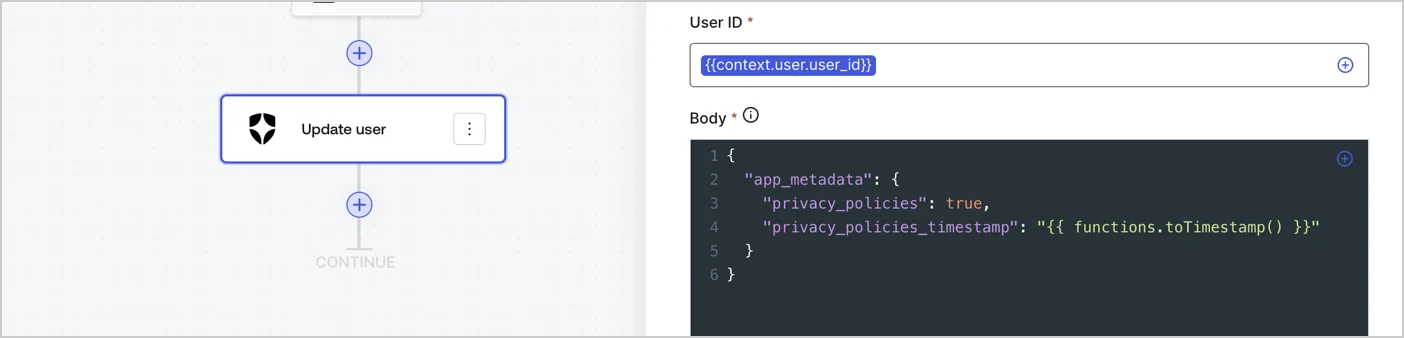
Add an Auth0 Update user action to the flow by following these steps:

1. Select the **Flow** **Update app\_metadata** > **Edit flow** to open the Flow editor in a new tab.
2. Below the StartAction, select the **+** icon to add an **Update user** action. Complete the fields below, then select **Save** to continue.

   * **Connection**: Select from the dropdown the Vault connection to your M2M application.

   * **User ID**: Enter `{{context.user.user_id}}`.

   * **Body**: Copy and paste the following code to update the app\_metadata with the privacy\_policies and privacy\_policies\_timestamp properties.

     ```text lines theme={null}
     {
       "app_metadata": {
         "privacy_policies": true,
         "privacy_policies_timestamp": "{{ functions.toTimestamp() }}"
       }
     }
     ```

   * Select **Save**.
3. Select **Publish** to save.
<Frame>
  <img src="https://mintcdn.com/docs-staging-chore-teams-api-autoupdate/byzZXAM7hdw3h1Ux/docs/images/cdy7uua7fh8z/CvMNIwWrOUwaFW4X3G28p/1fb70ae57a20749d9ffaaba8dc0b7e26/update-user-privacy.png?fit=max&auto=format&n=byzZXAM7hdw3h1Ux&q=85&s=579e83a54c29f34004f13e3515295613" alt="Dashboard > Actions > Forms > User case privacy policy code" data-og-width="1404" width="1404" data-og-height="338" height="338" data-path="docs/images/cdy7uua7fh8z/CvMNIwWrOUwaFW4X3G28p/1fb70ae57a20749d9ffaaba8dc0b7e26/update-user-privacy.png" data-optimize="true" data-opv="3" srcset="https://mintcdn.com/docs-staging-chore-teams-api-autoupdate/byzZXAM7hdw3h1Ux/docs/images/cdy7uua7fh8z/CvMNIwWrOUwaFW4X3G28p/1fb70ae57a20749d9ffaaba8dc0b7e26/update-user-privacy.png?w=280&fit=max&auto=format&n=byzZXAM7hdw3h1Ux&q=85&s=0cc05998b91c584cd97c601fa7c0ac52 280w, https://mintcdn.com/docs-staging-chore-teams-api-autoupdate/byzZXAM7hdw3h1Ux/docs/images/cdy7uua7fh8z/CvMNIwWrOUwaFW4X3G28p/1fb70ae57a20749d9ffaaba8dc0b7e26/update-user-privacy.png?w=560&fit=max&auto=format&n=byzZXAM7hdw3h1Ux&q=85&s=96060772c985500c7e2e1f1a47496582 560w, https://mintcdn.com/docs-staging-chore-teams-api-autoupdate/byzZXAM7hdw3h1Ux/docs/images/cdy7uua7fh8z/CvMNIwWrOUwaFW4X3G28p/1fb70ae57a20749d9ffaaba8dc0b7e26/update-user-privacy.png?w=840&fit=max&auto=format&n=byzZXAM7hdw3h1Ux&q=85&s=cc68ed6a5a8d14f8d6ae9bca860afa2d 840w, https://mintcdn.com/docs-staging-chore-teams-api-autoupdate/byzZXAM7hdw3h1Ux/docs/images/cdy7uua7fh8z/CvMNIwWrOUwaFW4X3G28p/1fb70ae57a20749d9ffaaba8dc0b7e26/update-user-privacy.png?w=1100&fit=max&auto=format&n=byzZXAM7hdw3h1Ux&q=85&s=76c6c6c9e42c3f9934237cf6079a3445 1100w, https://mintcdn.com/docs-staging-chore-teams-api-autoupdate/byzZXAM7hdw3h1Ux/docs/images/cdy7uua7fh8z/CvMNIwWrOUwaFW4X3G28p/1fb70ae57a20749d9ffaaba8dc0b7e26/update-user-privacy.png?w=1650&fit=max&auto=format&n=byzZXAM7hdw3h1Ux&q=85&s=1e027de615b50e0e971321aababca13c 1650w, https://mintcdn.com/docs-staging-chore-teams-api-autoupdate/byzZXAM7hdw3h1Ux/docs/images/cdy7uua7fh8z/CvMNIwWrOUwaFW4X3G28p/1fb70ae57a20749d9ffaaba8dc0b7e26/update-user-privacy.png?w=2500&fit=max&auto=format&n=byzZXAM7hdw3h1Ux&q=85&s=439b4b6bd9ab2d9523b0613abd5bac55 2500w" />
</Frame>

<Callout icon="file-lines" color="#0EA5E9" iconType="regular">
  The flow **Update app\_metadata** adds a `privacy_policies true` value to the app`_metadata` object and also generates a timestamp with a [helper function.](/docs/customize/forms/variables)
</Callout>

## Retrieve the form render code

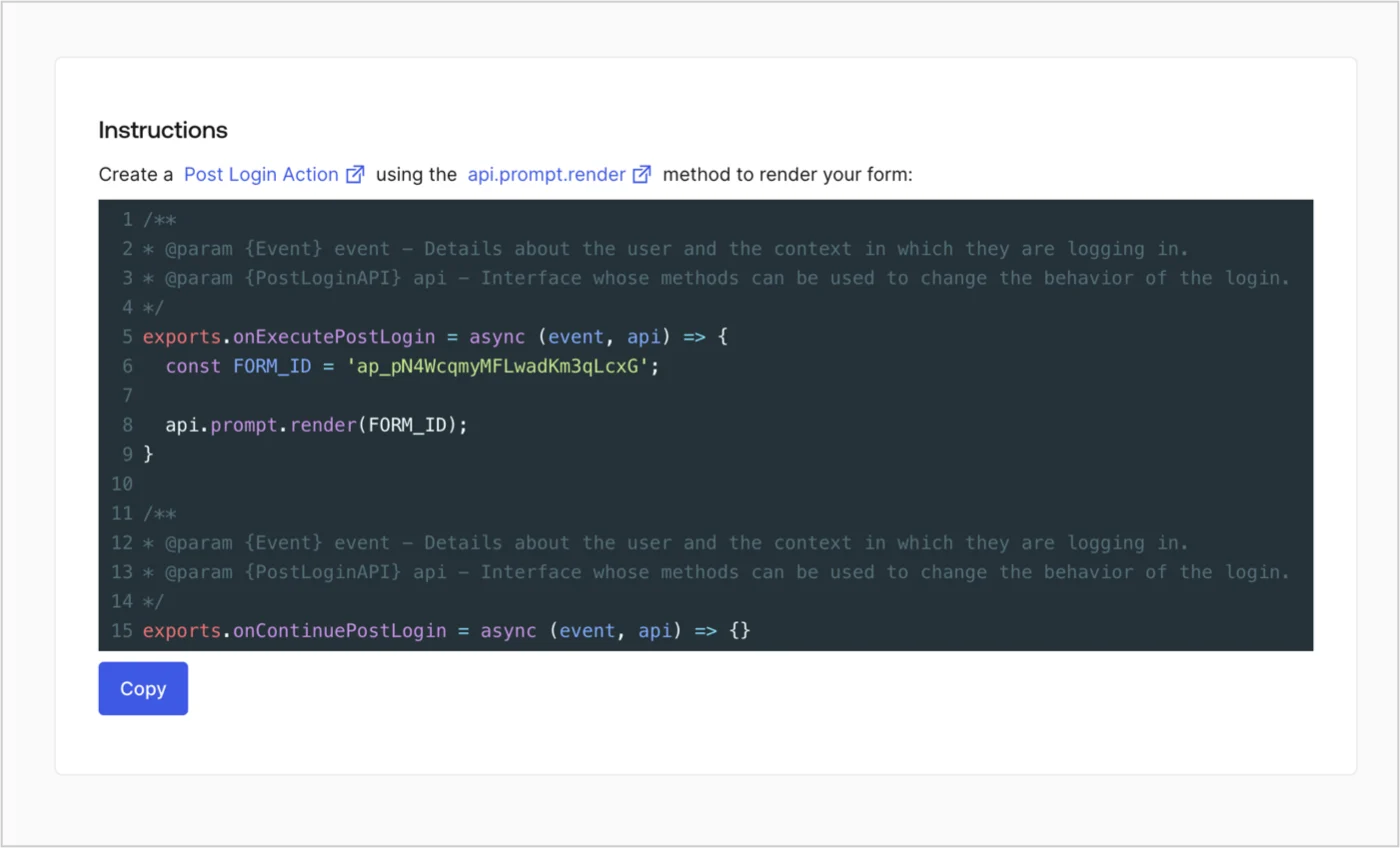
Retrieve your form render code to visually render the form with a custom Post Login Action by following these steps:

* From the Form editor, select **`<> Render`**.
* Select **Copy**.
<Frame>
  <img src="https://mintcdn.com/docs-staging-chore-teams-api-autoupdate/d94fcBVzphRuDtUH/docs/images/cdy7uua7fh8z/2EIUzc539sq9lwoTKbjoJv/496a864c0fc44a782c9cadca119dbfb0/embed.png?fit=max&auto=format&n=d94fcBVzphRuDtUH&q=85&s=98dca5093b741f1d2ac303c7b19d83f4" alt="Dashboard > Actions > Forms > Form > Embed" data-og-width="1400" width="1400" data-og-height="848" height="848" data-path="docs/images/cdy7uua7fh8z/2EIUzc539sq9lwoTKbjoJv/496a864c0fc44a782c9cadca119dbfb0/embed.png" data-optimize="true" data-opv="3" srcset="https://mintcdn.com/docs-staging-chore-teams-api-autoupdate/d94fcBVzphRuDtUH/docs/images/cdy7uua7fh8z/2EIUzc539sq9lwoTKbjoJv/496a864c0fc44a782c9cadca119dbfb0/embed.png?w=280&fit=max&auto=format&n=d94fcBVzphRuDtUH&q=85&s=964691fe600157ef635b1bc19d76b543 280w, https://mintcdn.com/docs-staging-chore-teams-api-autoupdate/d94fcBVzphRuDtUH/docs/images/cdy7uua7fh8z/2EIUzc539sq9lwoTKbjoJv/496a864c0fc44a782c9cadca119dbfb0/embed.png?w=560&fit=max&auto=format&n=d94fcBVzphRuDtUH&q=85&s=1c555fe61b75241fab0a7dba85550833 560w, https://mintcdn.com/docs-staging-chore-teams-api-autoupdate/d94fcBVzphRuDtUH/docs/images/cdy7uua7fh8z/2EIUzc539sq9lwoTKbjoJv/496a864c0fc44a782c9cadca119dbfb0/embed.png?w=840&fit=max&auto=format&n=d94fcBVzphRuDtUH&q=85&s=794e4a03c98e45189ca8b9cd72056dde 840w, https://mintcdn.com/docs-staging-chore-teams-api-autoupdate/d94fcBVzphRuDtUH/docs/images/cdy7uua7fh8z/2EIUzc539sq9lwoTKbjoJv/496a864c0fc44a782c9cadca119dbfb0/embed.png?w=1100&fit=max&auto=format&n=d94fcBVzphRuDtUH&q=85&s=5d53561bfbeec13f6301e436bab44379 1100w, https://mintcdn.com/docs-staging-chore-teams-api-autoupdate/d94fcBVzphRuDtUH/docs/images/cdy7uua7fh8z/2EIUzc539sq9lwoTKbjoJv/496a864c0fc44a782c9cadca119dbfb0/embed.png?w=1650&fit=max&auto=format&n=d94fcBVzphRuDtUH&q=85&s=8de8235aa552222c228ccde215f5b236 1650w, https://mintcdn.com/docs-staging-chore-teams-api-autoupdate/d94fcBVzphRuDtUH/docs/images/cdy7uua7fh8z/2EIUzc539sq9lwoTKbjoJv/496a864c0fc44a782c9cadca119dbfb0/embed.png?w=2500&fit=max&auto=format&n=d94fcBVzphRuDtUH&q=85&s=3dcd0a209d9b284068c3fcfe0193caea 2500w" />
</Frame>

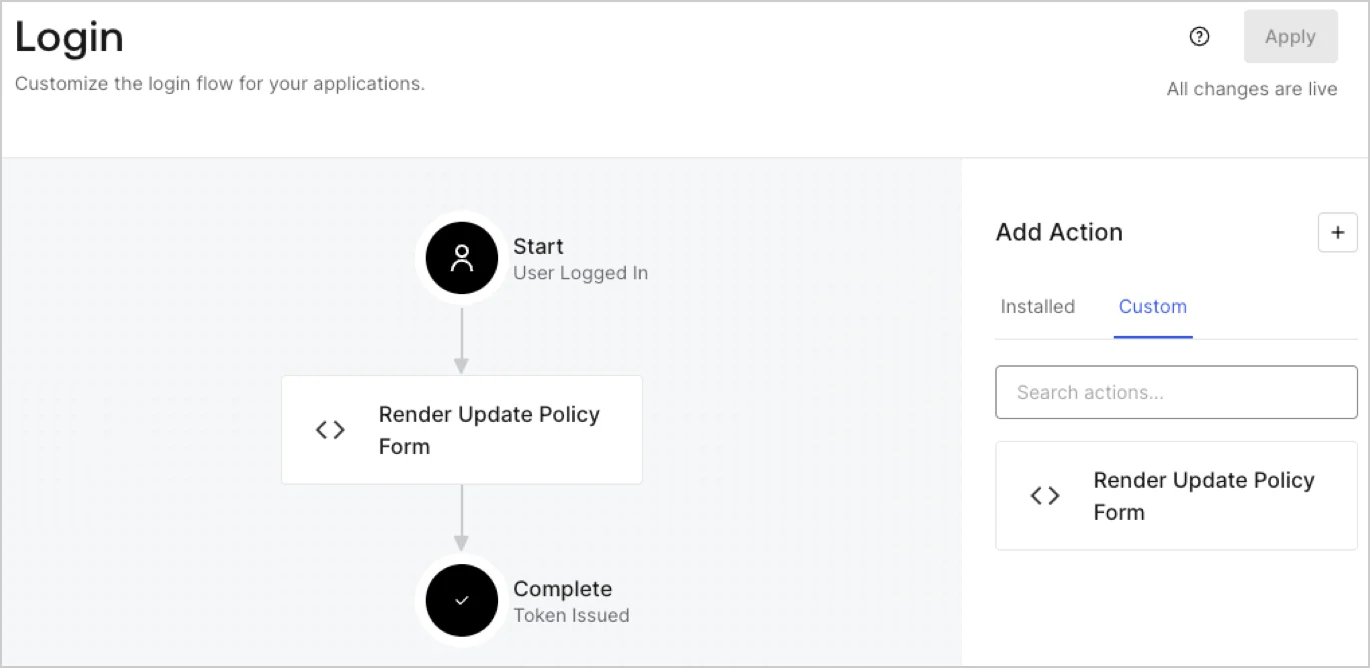
## Create a Post Login Action

Create a post-login Action to render your form by following these steps:

1. Navigate to **Auth0 Dashboard > Actions > Flows > Login.**
2. Select the **+** icon and Select **Build from scratch**:

   * **Name**: Enter `Render Update Policy Form`.
   * **Trigger**: Select `Login / Post Login`.
   * **Runtime**: Select the recommended version.
3. Select **Create**.

To configure the post-login Action:

1. Delete the existing code from the Code editor.
2. Paste the form render code into the Code editor.
3. Edit the code to define the conditional logic that will render the form.

   ```javascript lines theme={null}
   /**
   * @param {Event} event - Details about the user and the context in which they are logging in.
   * @param {PostLoginAPI} api - Interface whose methods can be used to change the behavior of the login.
   */
   exports.onExecutePostLogin = async (event, api) => {
     const FORM_ID = 'REPLACE_WITH_YOUR_FORM_ID';

     if (event.user.app_metadata.privacy_policies !== true) {
       api.prompt.render(FORM_ID);
     }
   }

   exports.onContinuePostLogin = async (event, api) => { }
   ```

   <Callout icon="file-lines" color="#0EA5E9" iconType="regular">
     The example code above will render the form when a user is missing the app metadata `privacy_policies` property.
   </Callout>
4. Select **Deploy.**
5. Drag and Drop the **Render Update Policy Form** Action to the **Login** flow.
   <Frame>
     <img src="https://mintcdn.com/docs-staging-chore-teams-api-autoupdate/BM6XEH2ndiUD0sX_/docs/images/cdy7uua7fh8z/5TOwDgevZsBqd7yZynUYWU/41ca909dc3007aed4f40ff794a05efa5/postlogin.png?fit=max&auto=format&n=BM6XEH2ndiUD0sX_&q=85&s=b35b015b5c97bfb3945f6c42161c5620" alt="Dashboard > Forms > Use Case > Render update policy form login action" data-og-width="1370" width="1370" data-og-height="668" height="668" data-path="docs/images/cdy7uua7fh8z/5TOwDgevZsBqd7yZynUYWU/41ca909dc3007aed4f40ff794a05efa5/postlogin.png" data-optimize="true" data-opv="3" srcset="https://mintcdn.com/docs-staging-chore-teams-api-autoupdate/BM6XEH2ndiUD0sX_/docs/images/cdy7uua7fh8z/5TOwDgevZsBqd7yZynUYWU/41ca909dc3007aed4f40ff794a05efa5/postlogin.png?w=280&fit=max&auto=format&n=BM6XEH2ndiUD0sX_&q=85&s=e38ab2f8057fc53a499a7d9d71f10d16 280w, https://mintcdn.com/docs-staging-chore-teams-api-autoupdate/BM6XEH2ndiUD0sX_/docs/images/cdy7uua7fh8z/5TOwDgevZsBqd7yZynUYWU/41ca909dc3007aed4f40ff794a05efa5/postlogin.png?w=560&fit=max&auto=format&n=BM6XEH2ndiUD0sX_&q=85&s=1ae5bcd8e611c20037558f93ac61282e 560w, https://mintcdn.com/docs-staging-chore-teams-api-autoupdate/BM6XEH2ndiUD0sX_/docs/images/cdy7uua7fh8z/5TOwDgevZsBqd7yZynUYWU/41ca909dc3007aed4f40ff794a05efa5/postlogin.png?w=840&fit=max&auto=format&n=BM6XEH2ndiUD0sX_&q=85&s=1dc105eba191a3ba476b3dd1c8243741 840w, https://mintcdn.com/docs-staging-chore-teams-api-autoupdate/BM6XEH2ndiUD0sX_/docs/images/cdy7uua7fh8z/5TOwDgevZsBqd7yZynUYWU/41ca909dc3007aed4f40ff794a05efa5/postlogin.png?w=1100&fit=max&auto=format&n=BM6XEH2ndiUD0sX_&q=85&s=9bff62d8d147d01444dc332444c9911e 1100w, https://mintcdn.com/docs-staging-chore-teams-api-autoupdate/BM6XEH2ndiUD0sX_/docs/images/cdy7uua7fh8z/5TOwDgevZsBqd7yZynUYWU/41ca909dc3007aed4f40ff794a05efa5/postlogin.png?w=1650&fit=max&auto=format&n=BM6XEH2ndiUD0sX_&q=85&s=d59a9a2fb036d15c8ed3adfa30b1500a 1650w, https://mintcdn.com/docs-staging-chore-teams-api-autoupdate/BM6XEH2ndiUD0sX_/docs/images/cdy7uua7fh8z/5TOwDgevZsBqd7yZynUYWU/41ca909dc3007aed4f40ff794a05efa5/postlogin.png?w=2500&fit=max&auto=format&n=BM6XEH2ndiUD0sX_&q=85&s=d9cae2fd2a8590e396e48eab7456dfd7 2500w" />
   </Frame>
6. Select **Apply.**

### Test implementation

Test the implementation by following these steps:

1. Log in with an existing user whose app`_metadata` attribute `privacy_policies` does not have a value.
2. The post-login Action in the Login flow will render the form and prompt for acceptance.
3. Select **Auth0 Dashboard > User Management > Users,** locate the user and verify that the `app_metadata` attribute `privacy_policies` contains a `true` value and a timestamp.
